Guides
Use cases
Concrete ways to use Anime Stats with your favorite series—each section links to the right tool and, where we have them, a screenshot from the product.
New to the episode view? Read how episode ratings work.
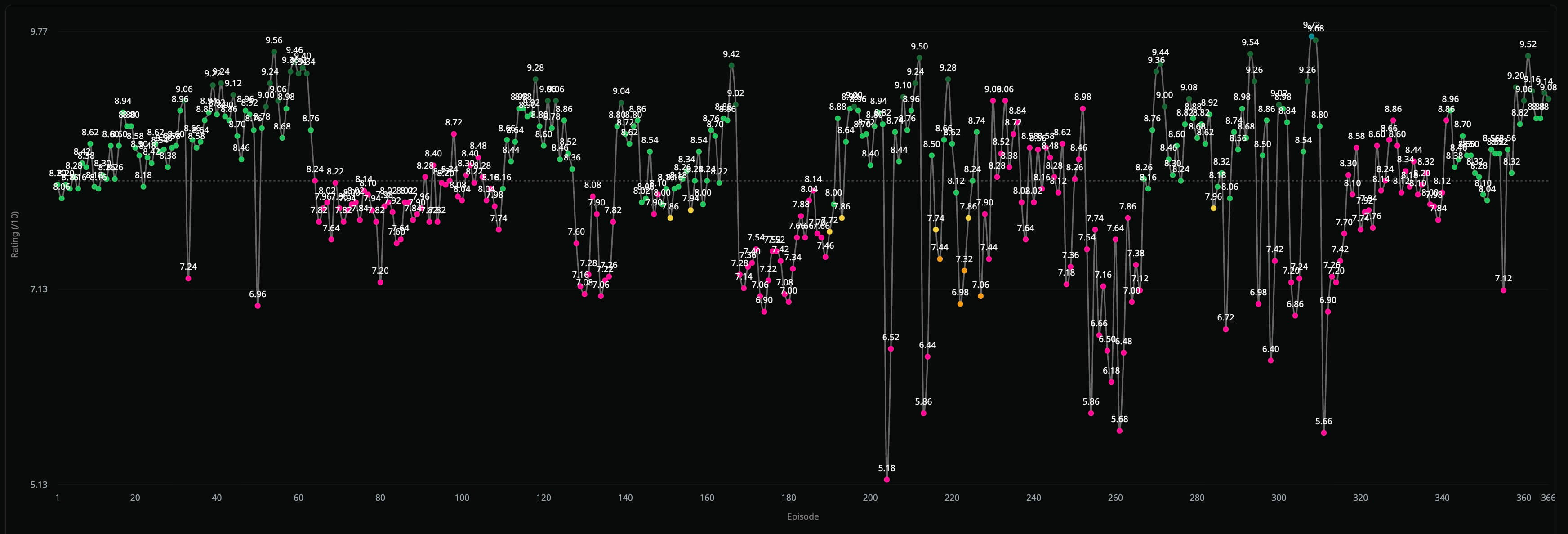
Skip weak or filler episodes on huge shows
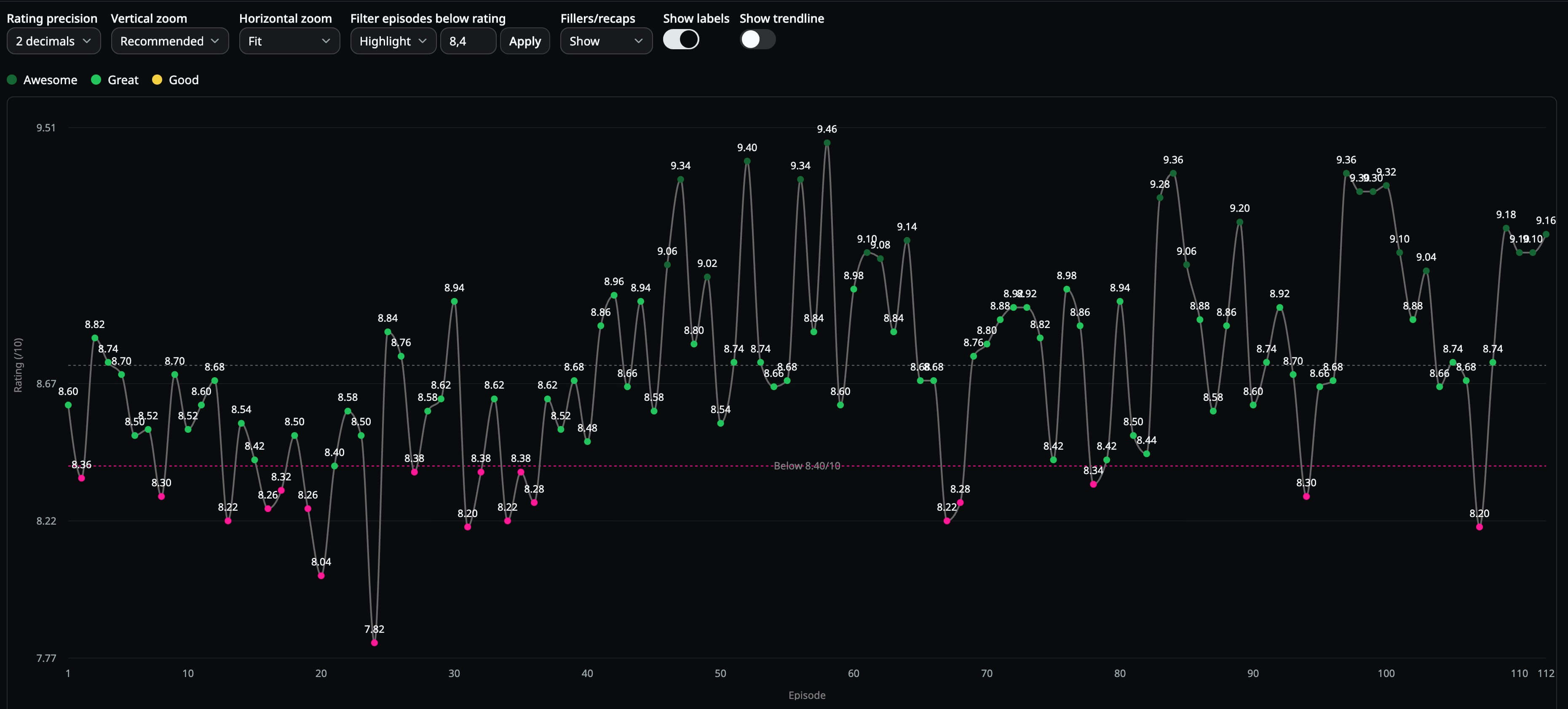
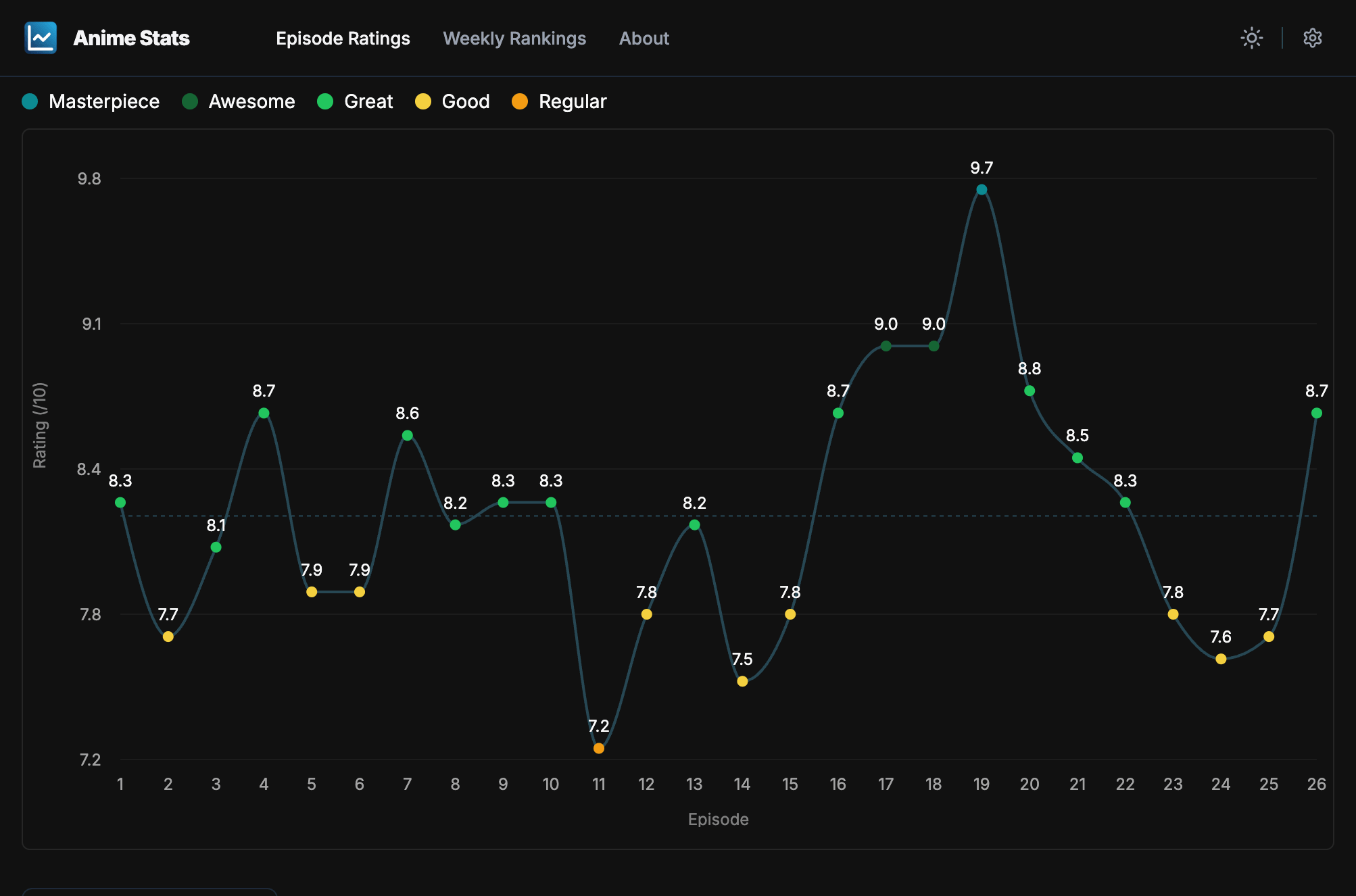
Long runners are easier to finish when you can drop episodes the community rated poorly, or strip filler and recap entries out of the graph and averages.
- Open a series, then expand More options.
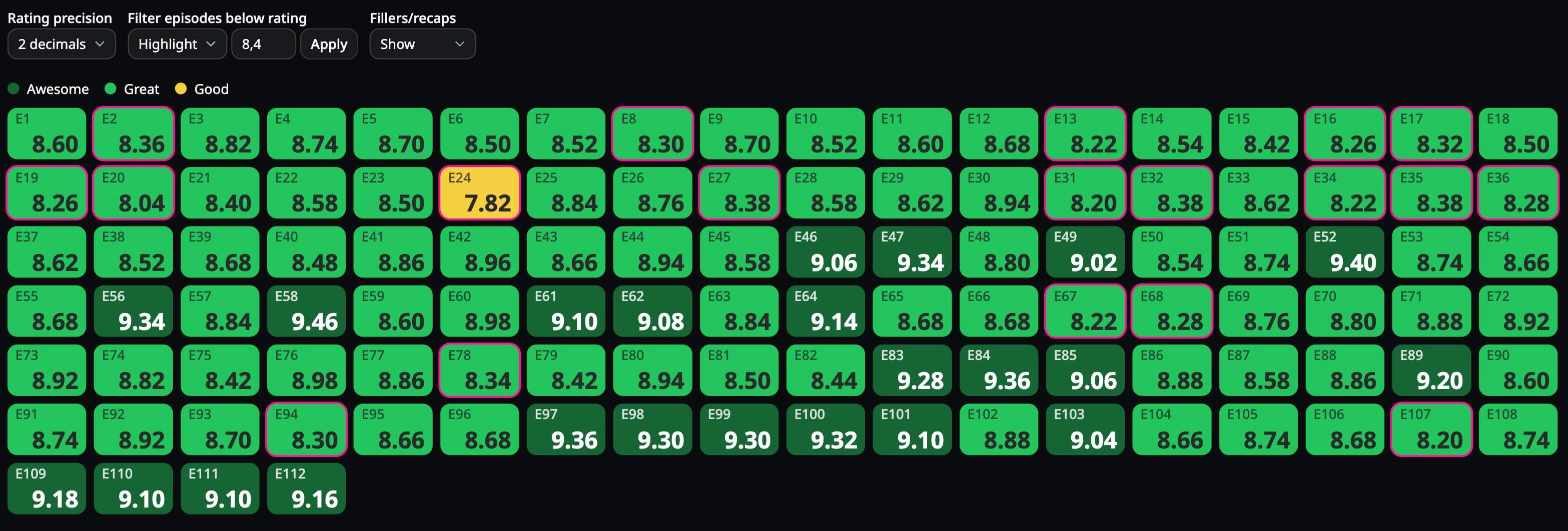
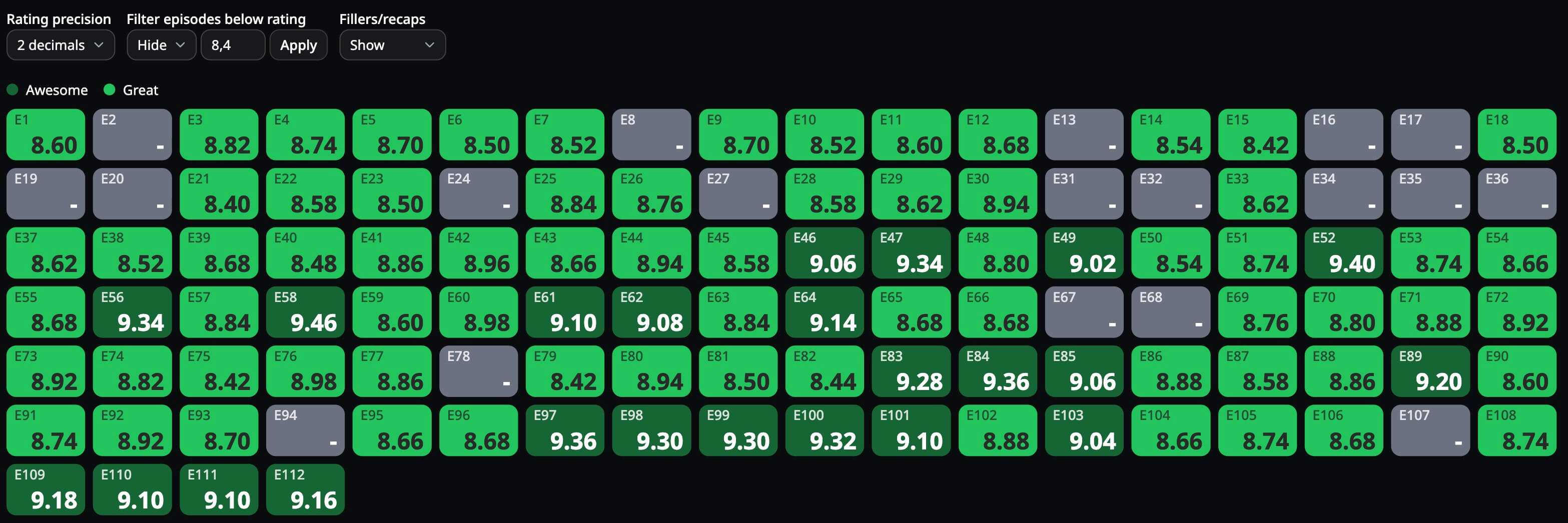
- Use Filter episodes below rating: enter a 0–10 cutoff and choose Hide, Remove, or Highlight.
- Under Fillers/recaps, choose Remove to drop them from the list and chart, or Hide to mute their scores.
List every filler or recap in one place
When MAL marks episodes as filler or recap, they are labeled in the table. Highlight them in the chart and cards, or skim the episode column for the red **(Filler)** tag.
- Use Fillers/recaps → Highlight to ring those episodes in graph and card views.
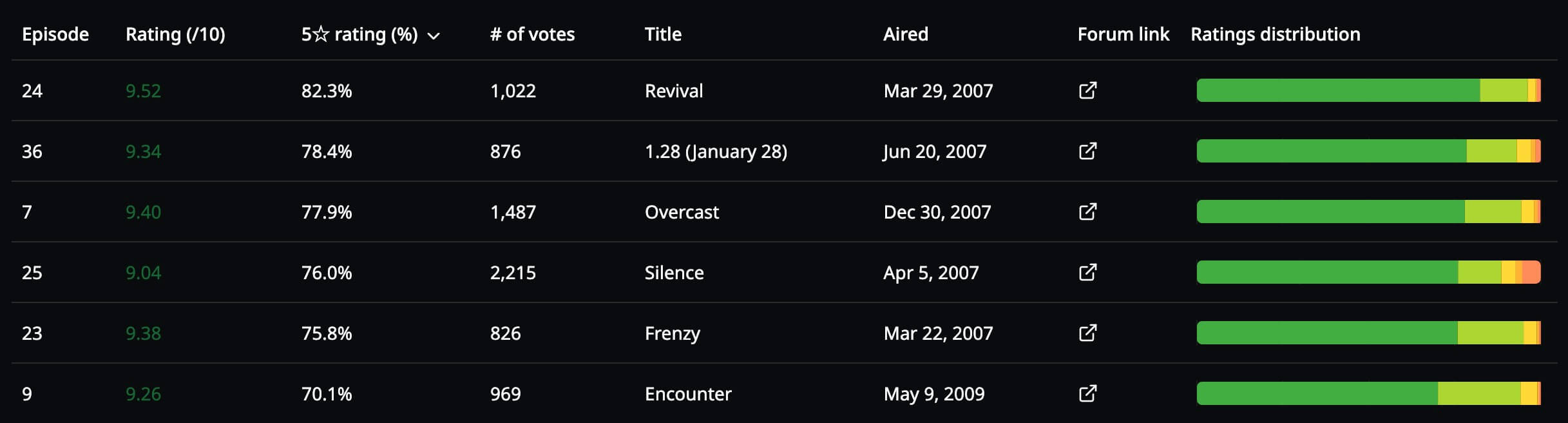
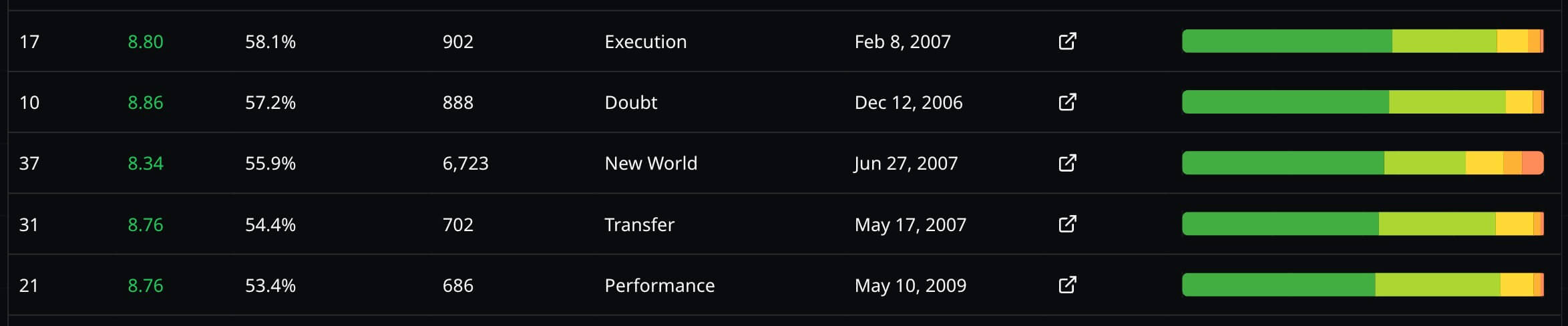
- Switch to Table view for a compact checklist with titles and scores.

Rewatch only the stand-out episodes
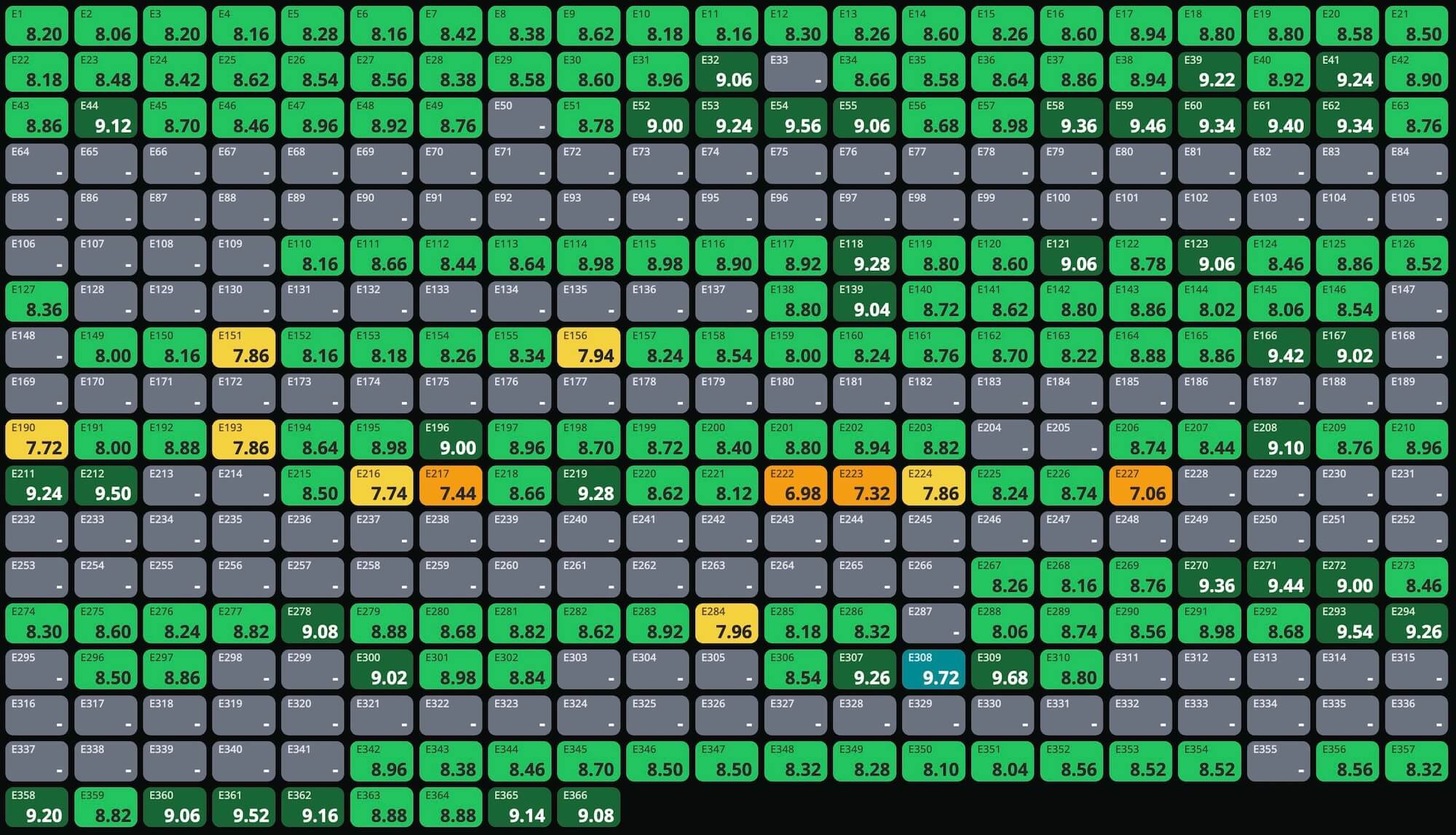
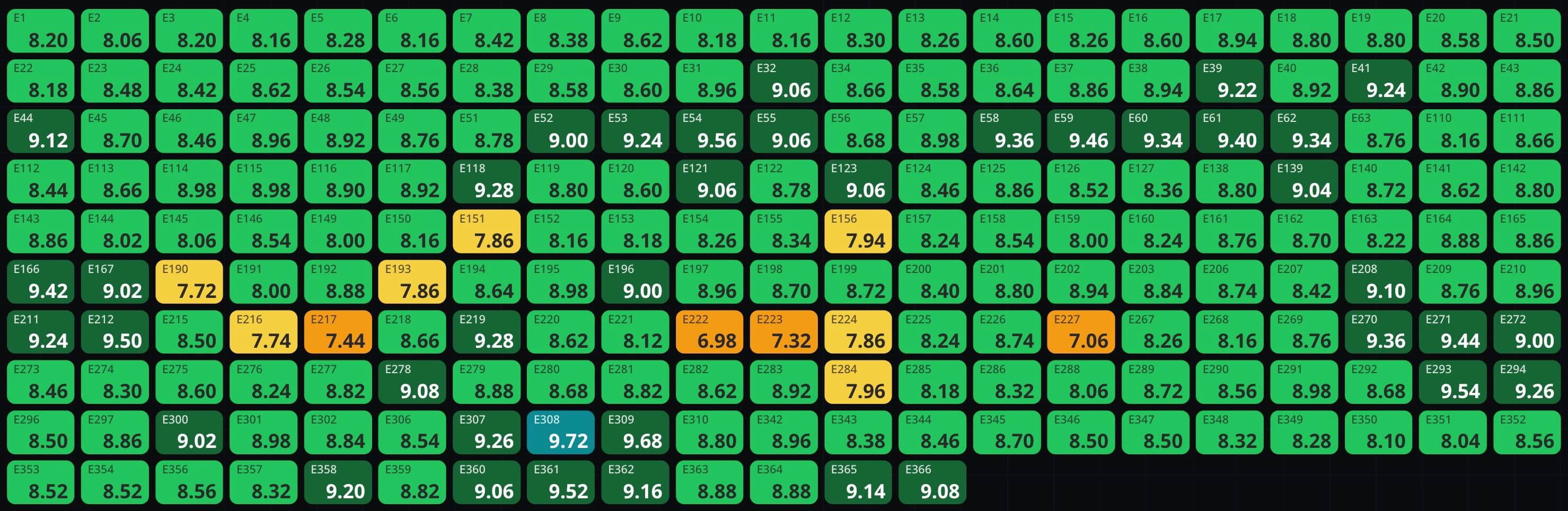
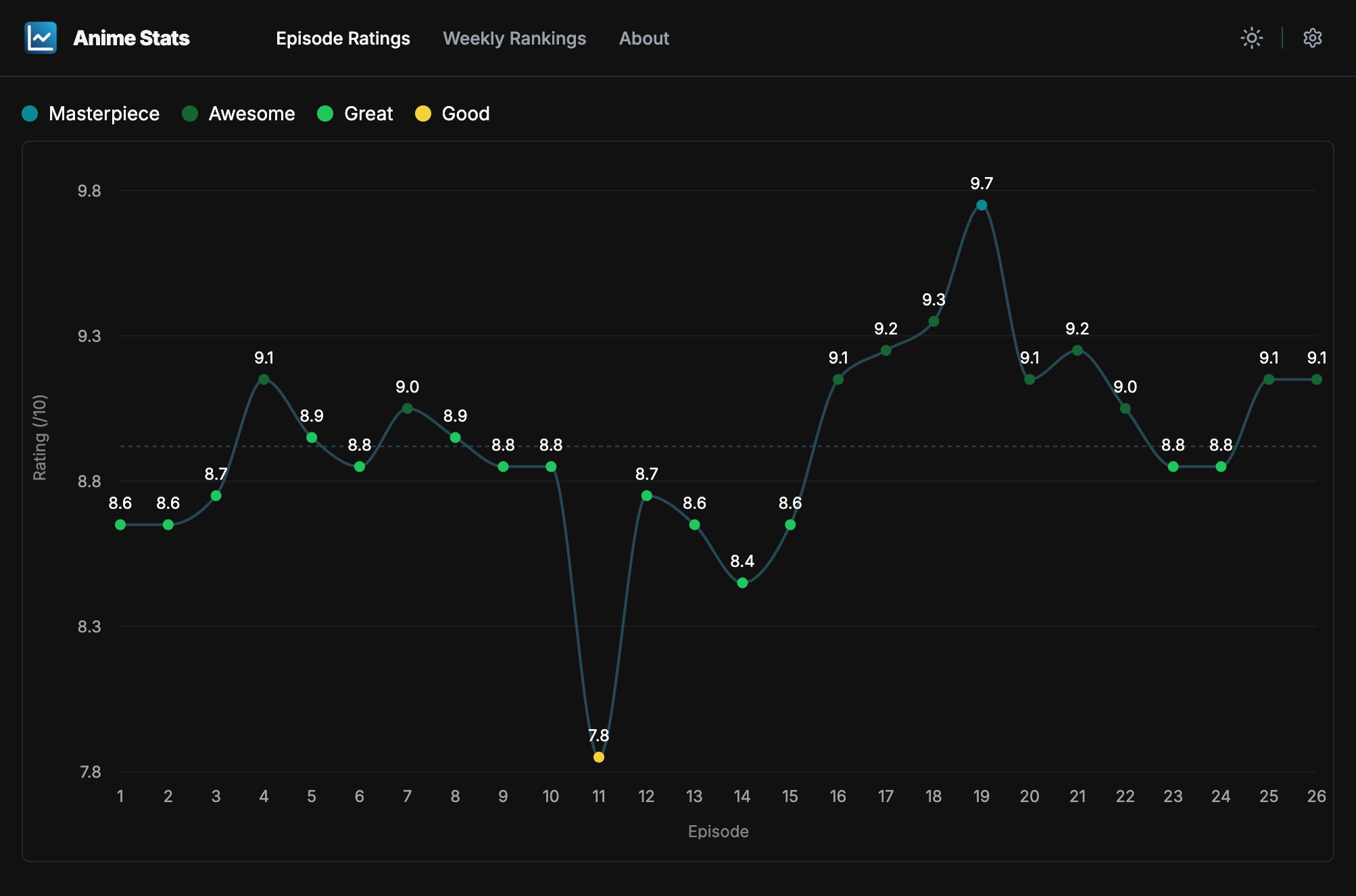
Sort by **Rating** instead of episode number to surface the episodes fans scored highest—perfect before a rewatch or a “best of” marathon.
- Set Sort by to Rating (or Five stars if you prefer that column).
- Try Cards view for a color-coded grid of the whole run at a glance.

Find the “everyone remembers this” episodes
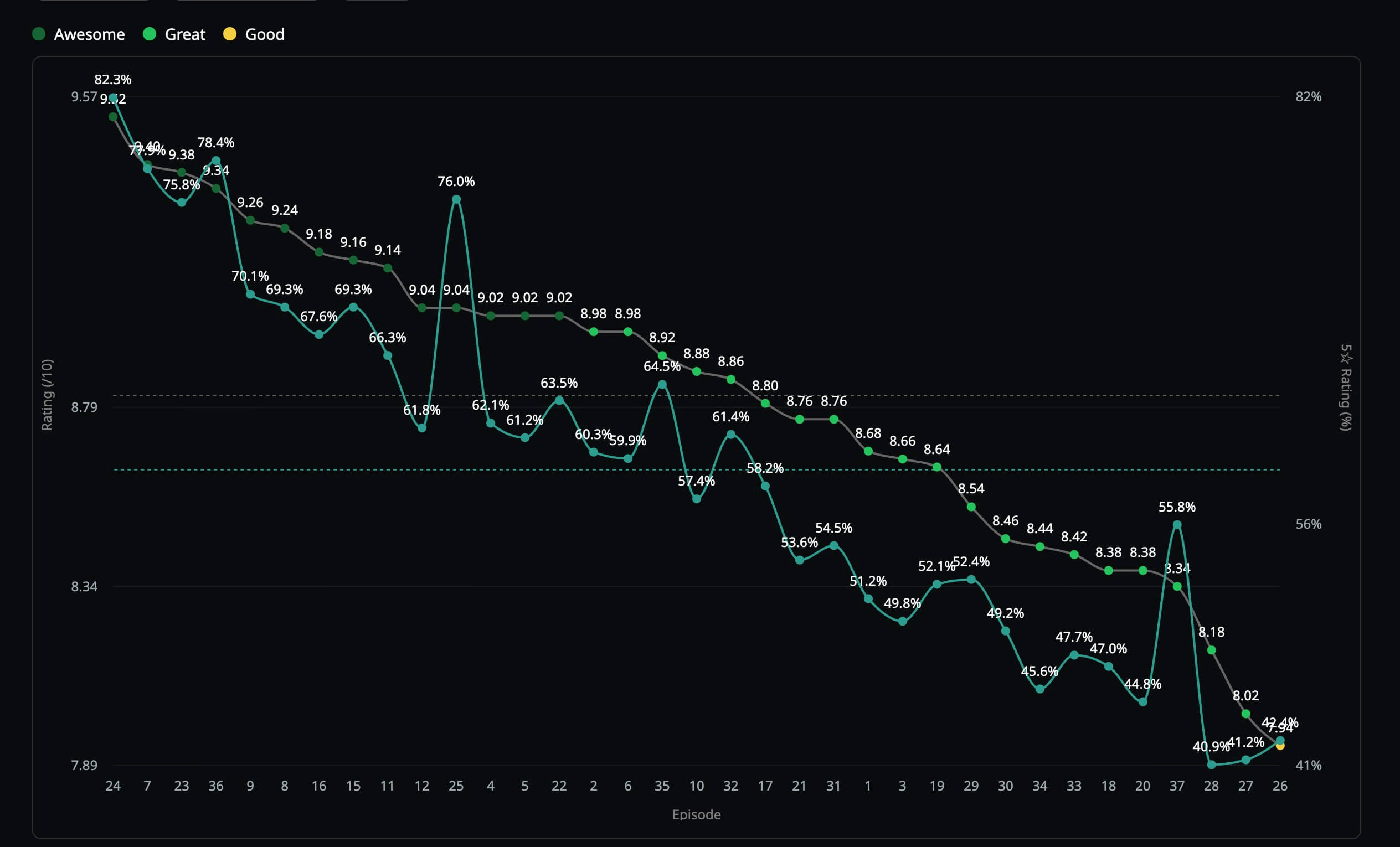
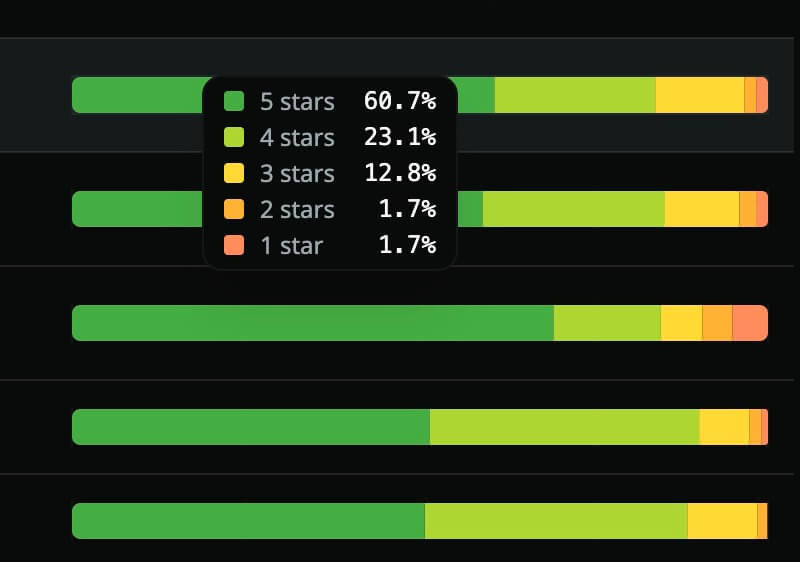
There is no separate “controversy” score—big swings show up as spikes or dips on the graph, and you can cross-check **votes** in the table for episodes that drew huge polls (finale shocks, major deaths, divisive pacing).
- Scan the graph for sharp peaks or drops, then open those episodes in the table.
- Compare vote counts to spot episodes that pulled unusually large crowds.

Compare MAL forum polls with IMDb episode scores
MyAnimeList uses community poll threads per episode; IMDb uses per-episode user ratings from their catalog. Switch the **data source** in search (or open an IMDb id URL) to see the same show under the other system—great when you want a second opinion.
- From Episode Ratings or ⌘K / Ctrl+K search, pick IMDb and search the English title.
- Or paste an IMDb title URL—
/anime/tt…routes work like MAL ids.

See each season’s best episodes (IMDb multi-season shows)
For titles that IMDb splits into seasons, **Cards** view groups episodes under **Season 1**, **Season 2**, and so on. Sort by rating and the top card in each block is that season’s standout.
- Load an IMDb-backed series with multiple seasons (you may be prompted to pick a season or load all).
- Choose Cards view and Sort by → Rating.

More you can do
Other features already in the app that pair well with the workflows above.
Track how this season’s episodes rank week by week
Load the current (or past) TV season from MAL and watch how each episode scores relative to the rest of the lineup as weeks progress.

Discover what to watch next from seasonal and popular lists
Explore surfaces seasonal charts, popular entries, and favorites on MAL—or trending IMDb animation titles—then jump straight into full episode stats.
One Piece arcs, sagas, filler-aware averages, and schedule
Dedicated tooling for the long run: story arcs, optional filler filtering, and the airing schedule view for planning catches ups.
Chapter ratings for manga
Use the same graphs and filters for supported manga: search a title and open `/manga/…` routes when MAL exposes chapter polls.
See precise MAL episode scores while browsing MyAnimeList
The browser extension replaces rounded list scores with accurate averages and adds sorting on MAL’s own anime, season, and list pages.